New article
Recently updated
Adding machines

Who is this article for?
Administrators responsible for machine management.
Administrator permissions are required.
Adding your machines creates an online inventory of your fleet so you can conduct digital pre-starts and share a machine profile with a click.
1. Adding a machine
To add a machine:
- Click the Add New Machine button.
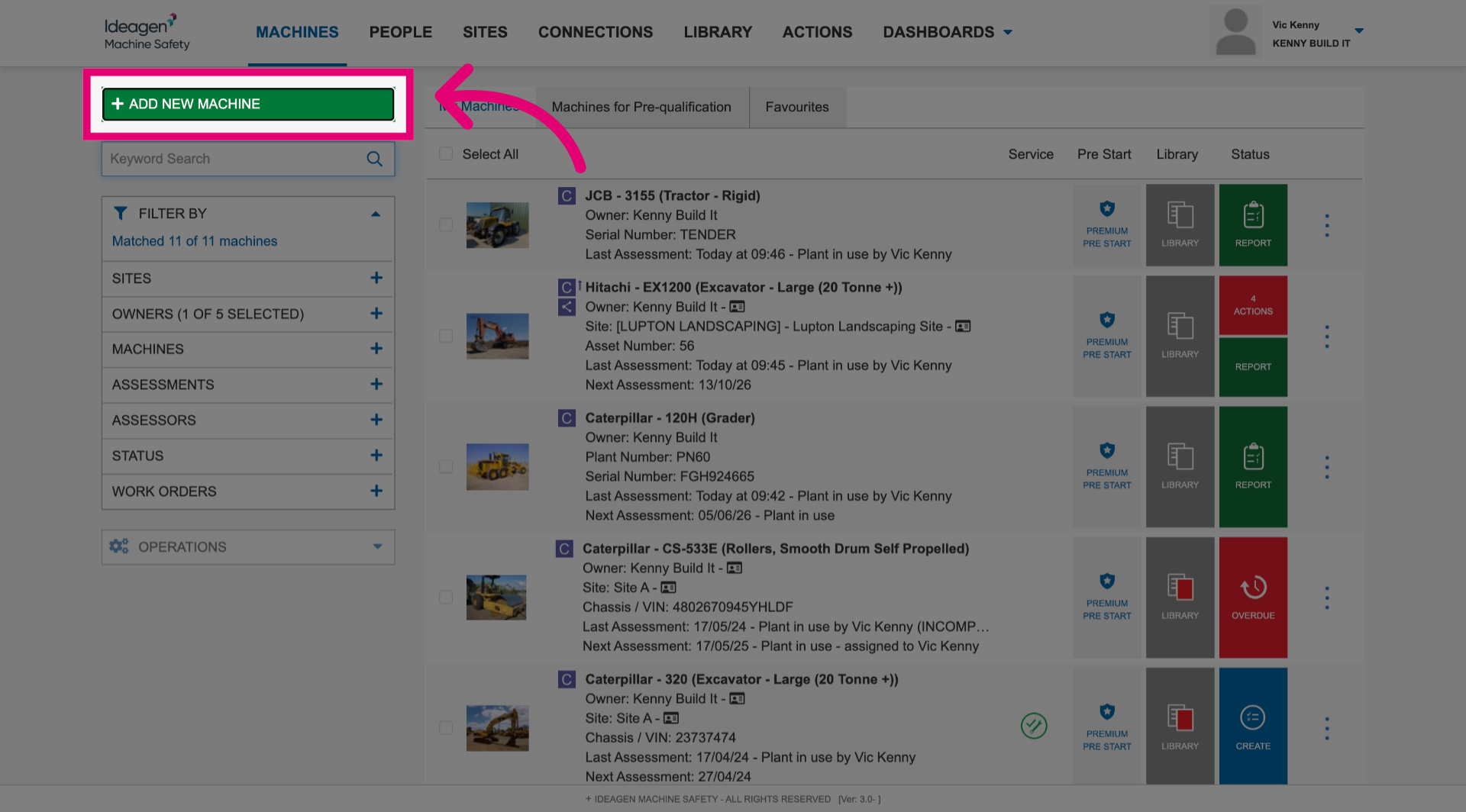
- Enter the Make.
- Enter the Model.
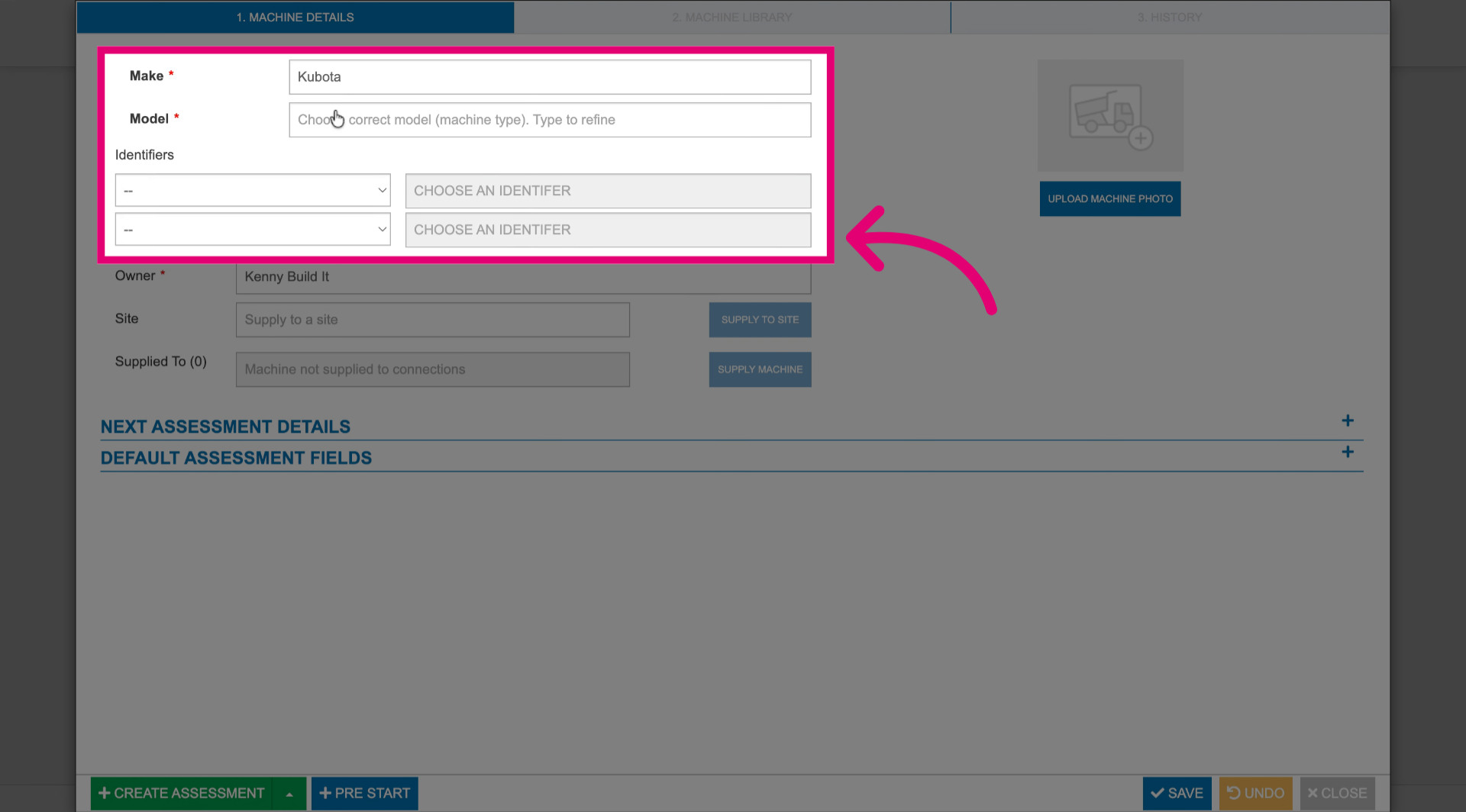
- Set Identifiers.
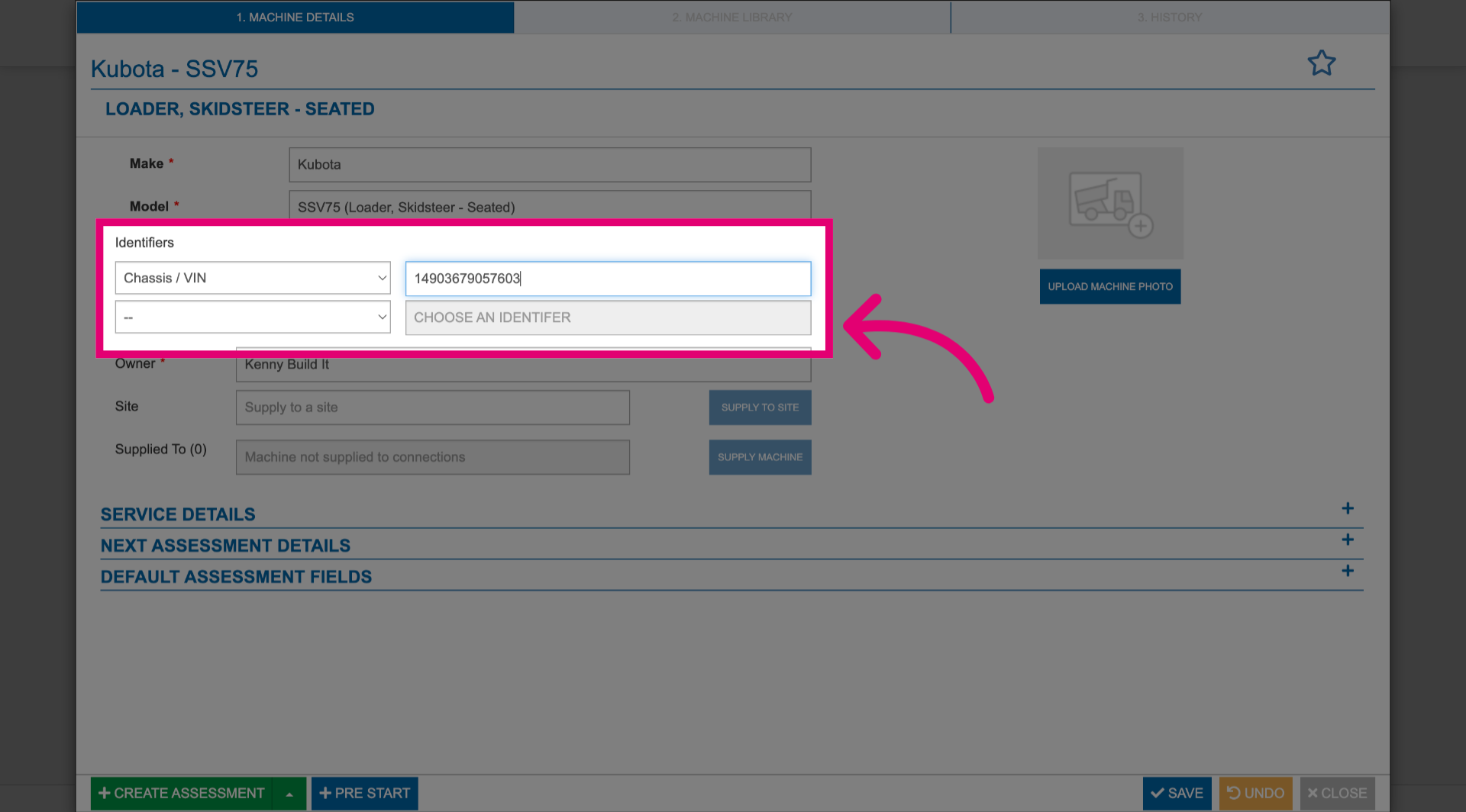
- Choose an Owner of the machine.
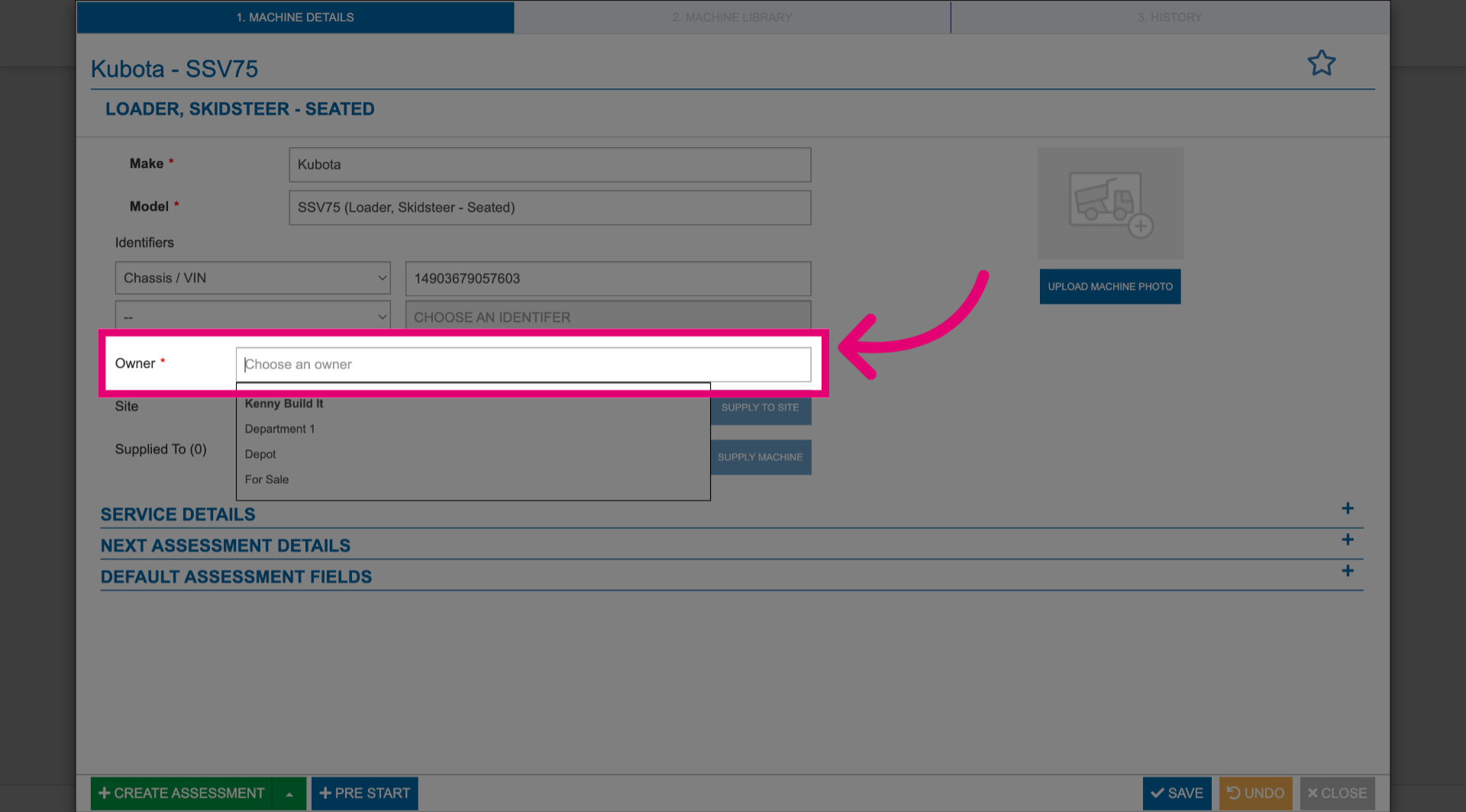
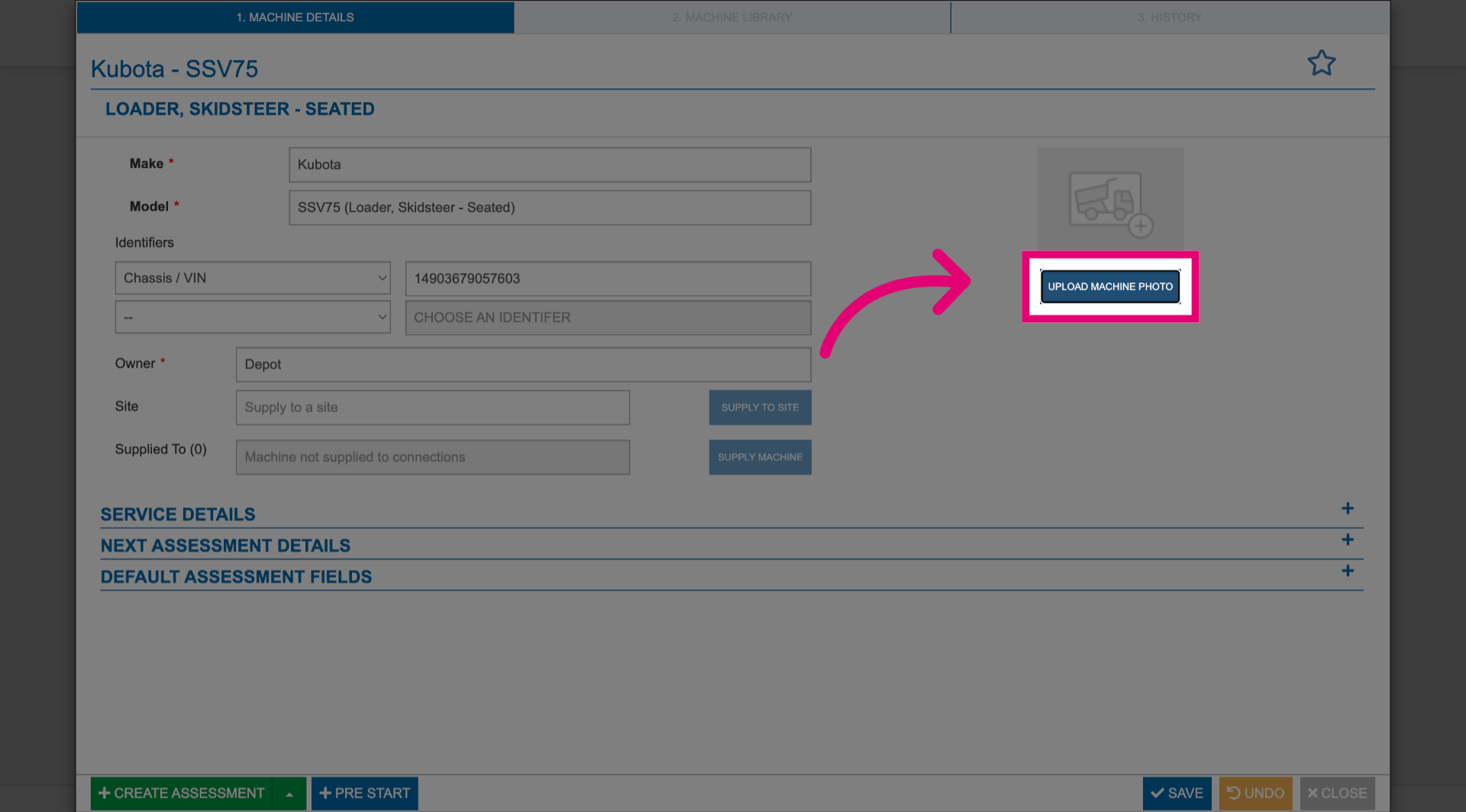
- Click Upload machine photo to add a picture.
This is helpful for visual identification.
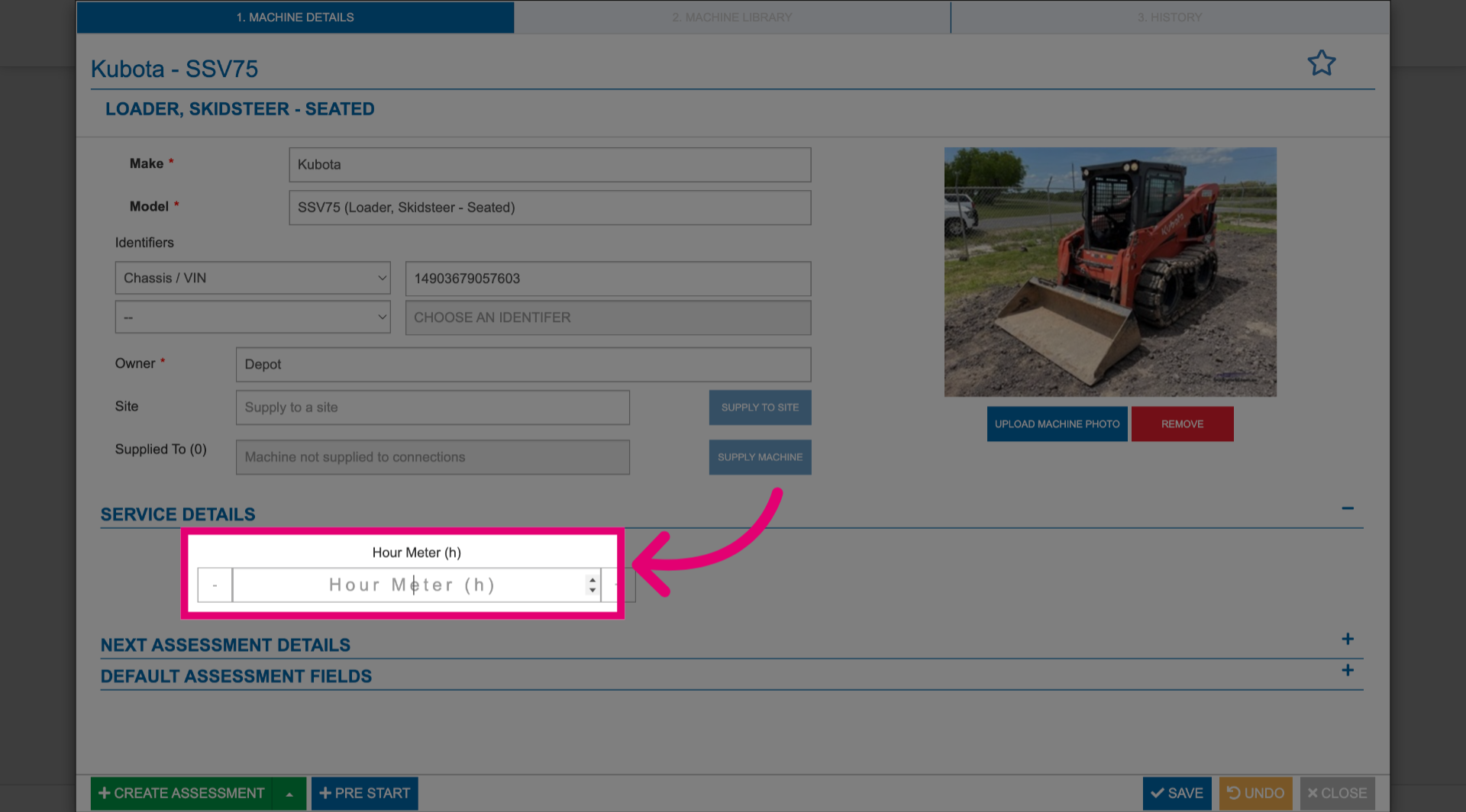
- Expand the Service details section.
- Enter the machine's operating hours reading.
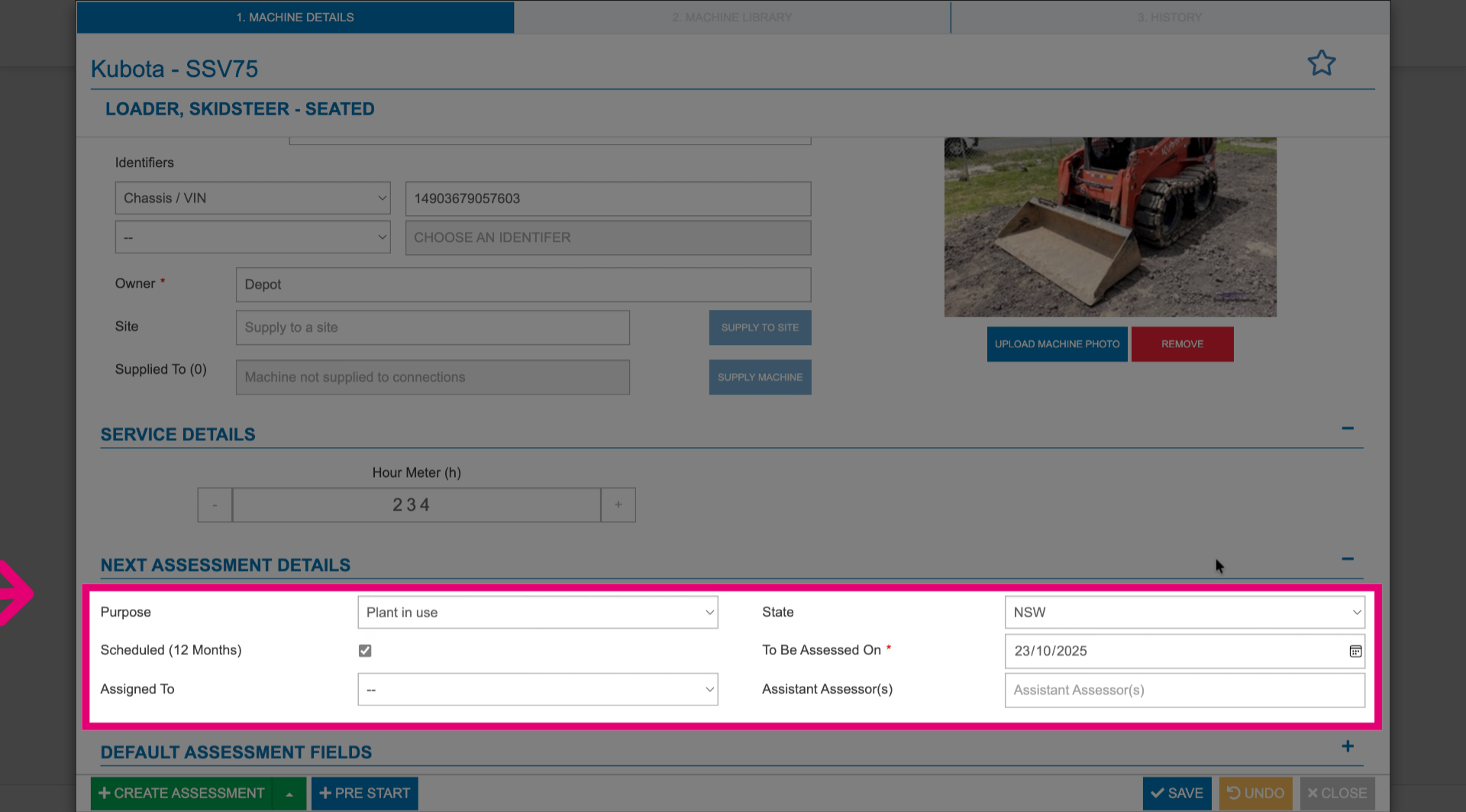
- Expand the Next assessment details section.
- Schedule the upcoming machine risk assessment.
- Click Save.
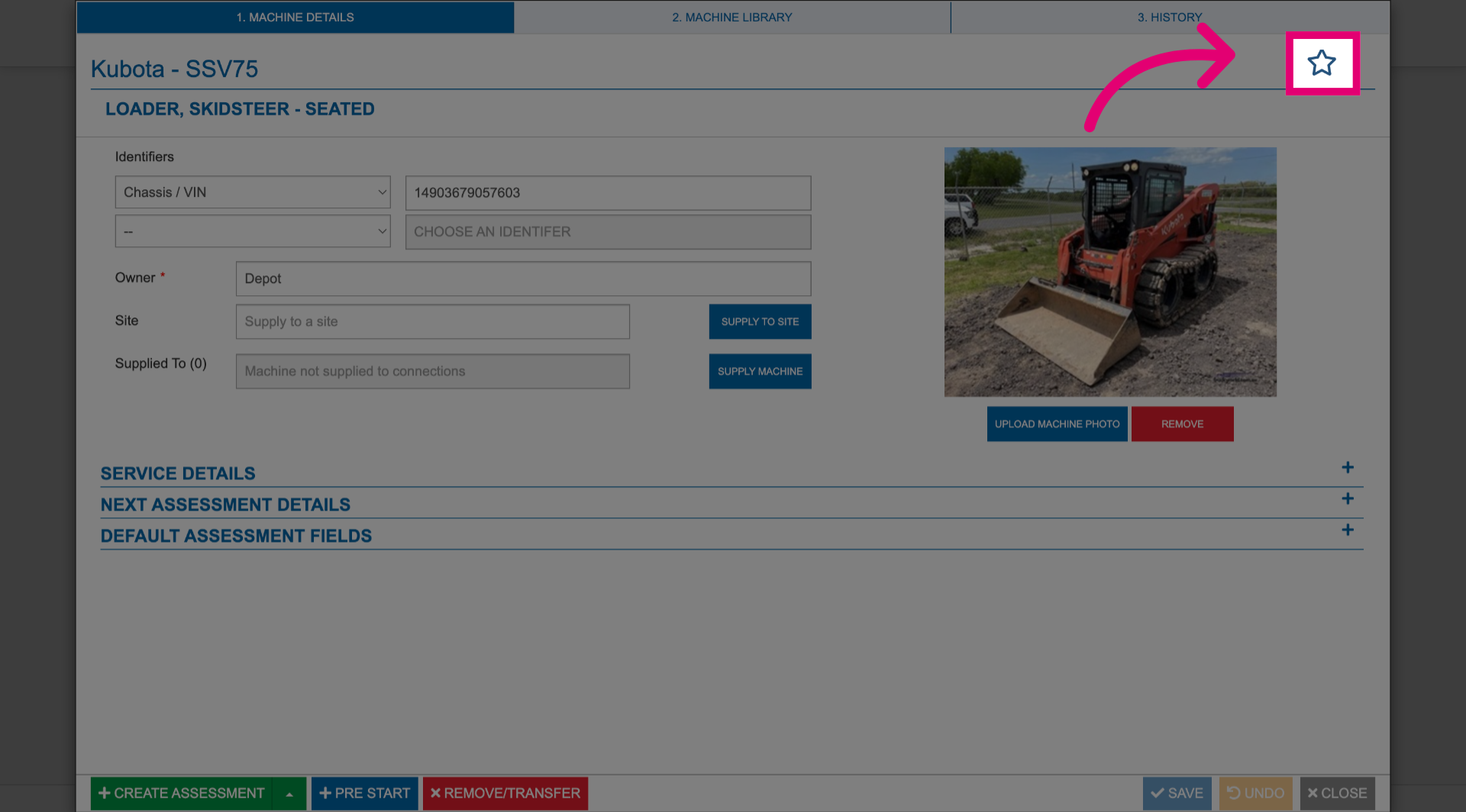
- Click the Favourite icon.
This is useful if you want the machine to be easily accessible to specific users.
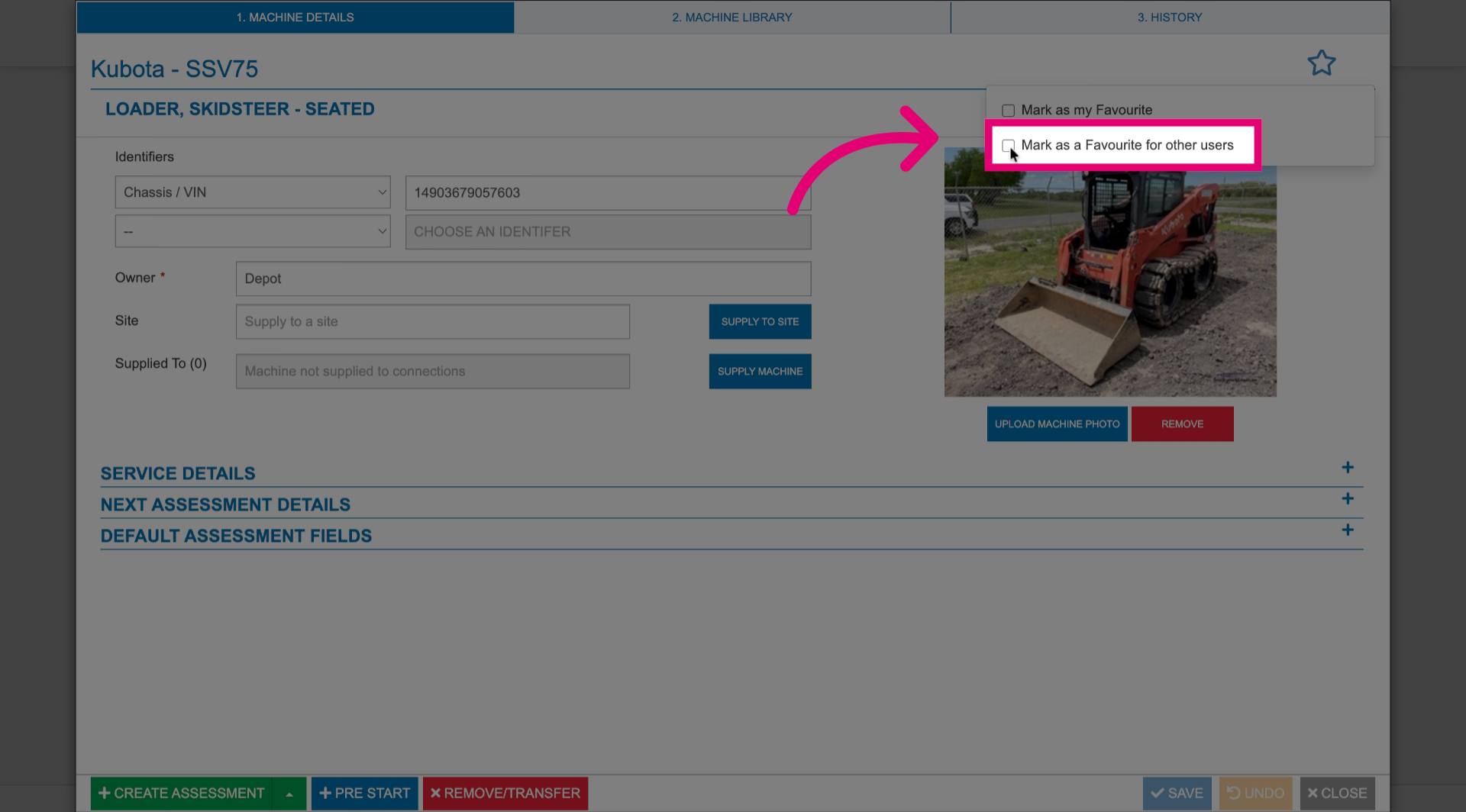
- Tick Mark as Favourite for other users.
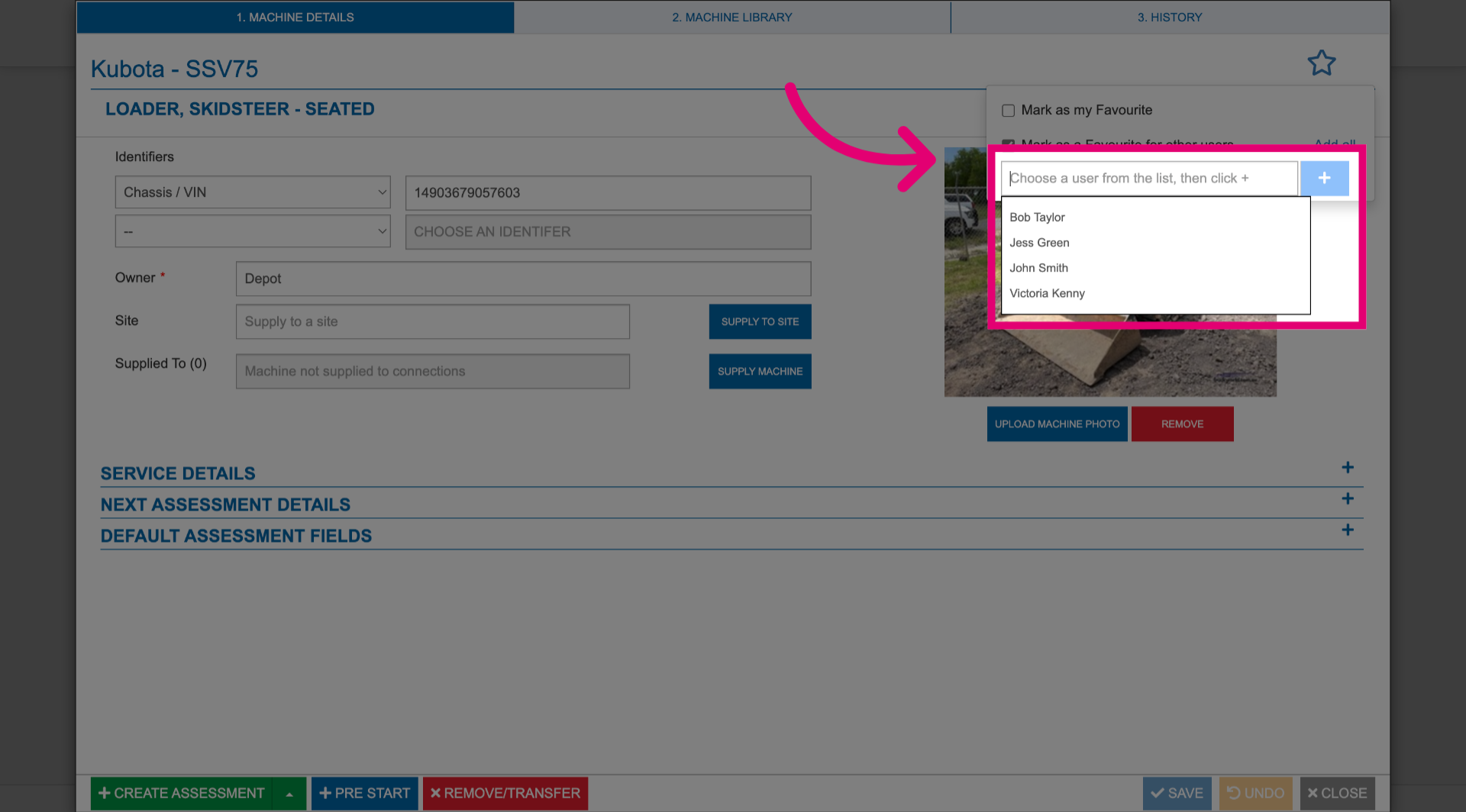
- Select a user from the list.
- Click the Plus button.
- Repeat for all users that should have the machine in their Favourites.
- Click Save.
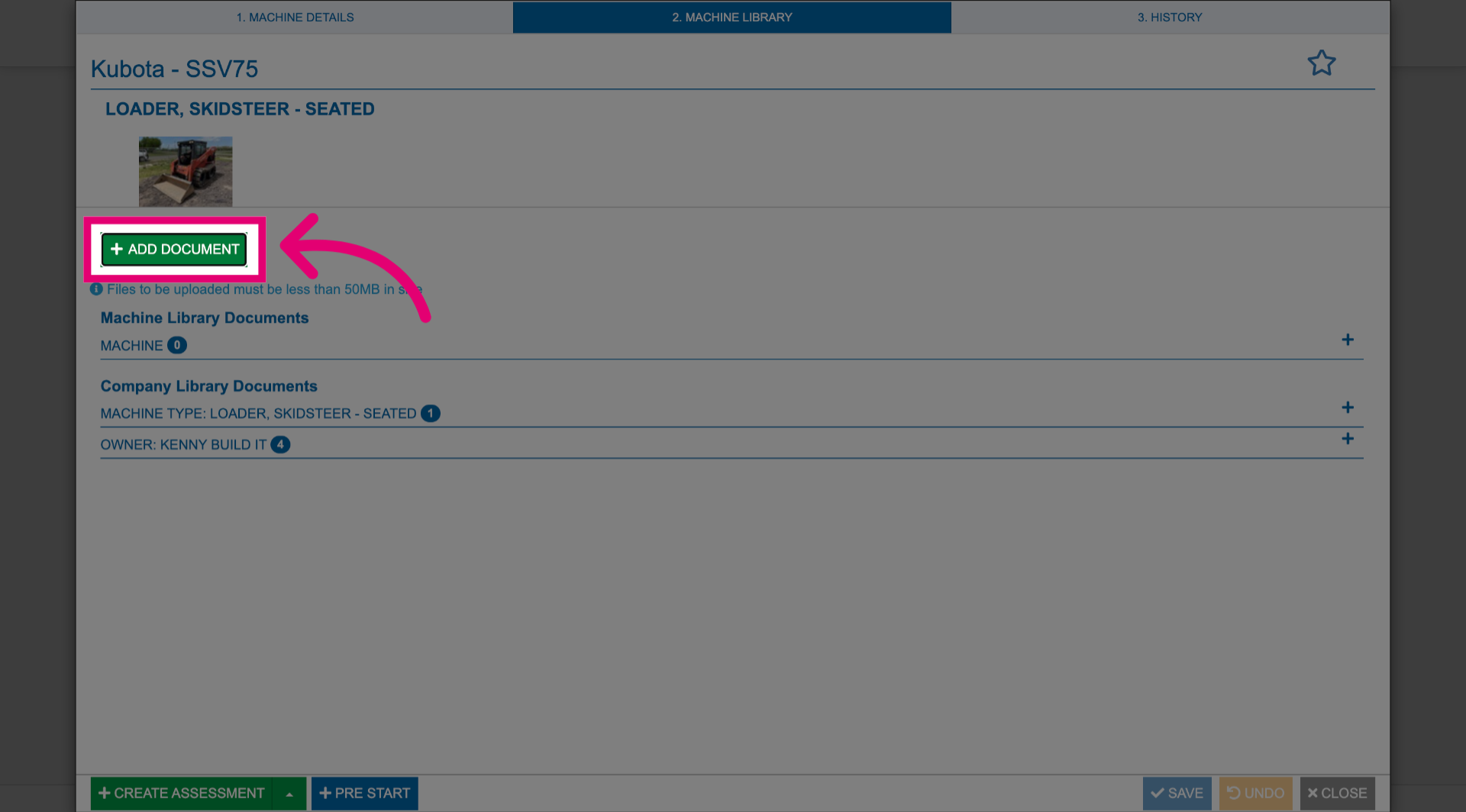
- Switch to the Machine Library tab.
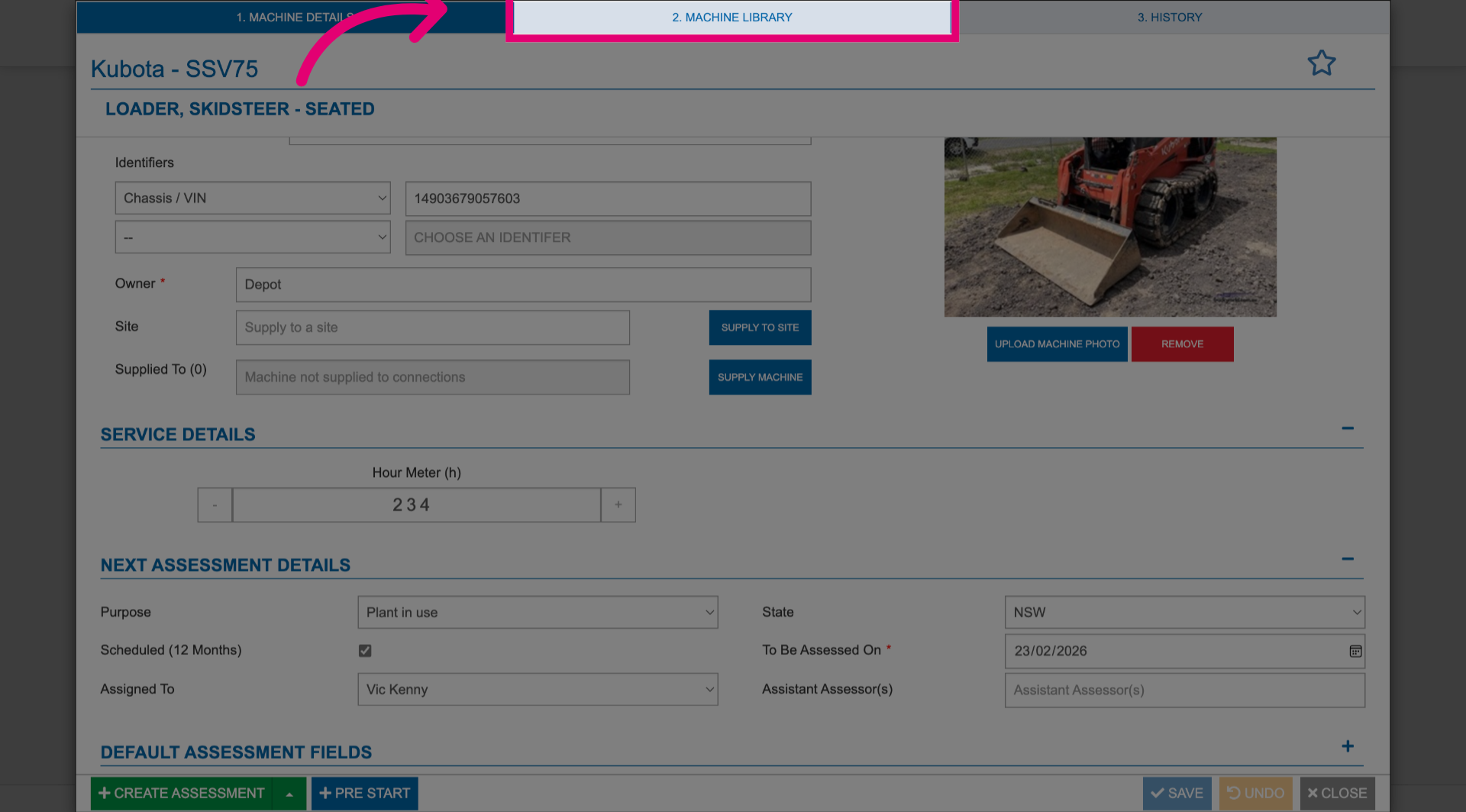
- Click Add Document.
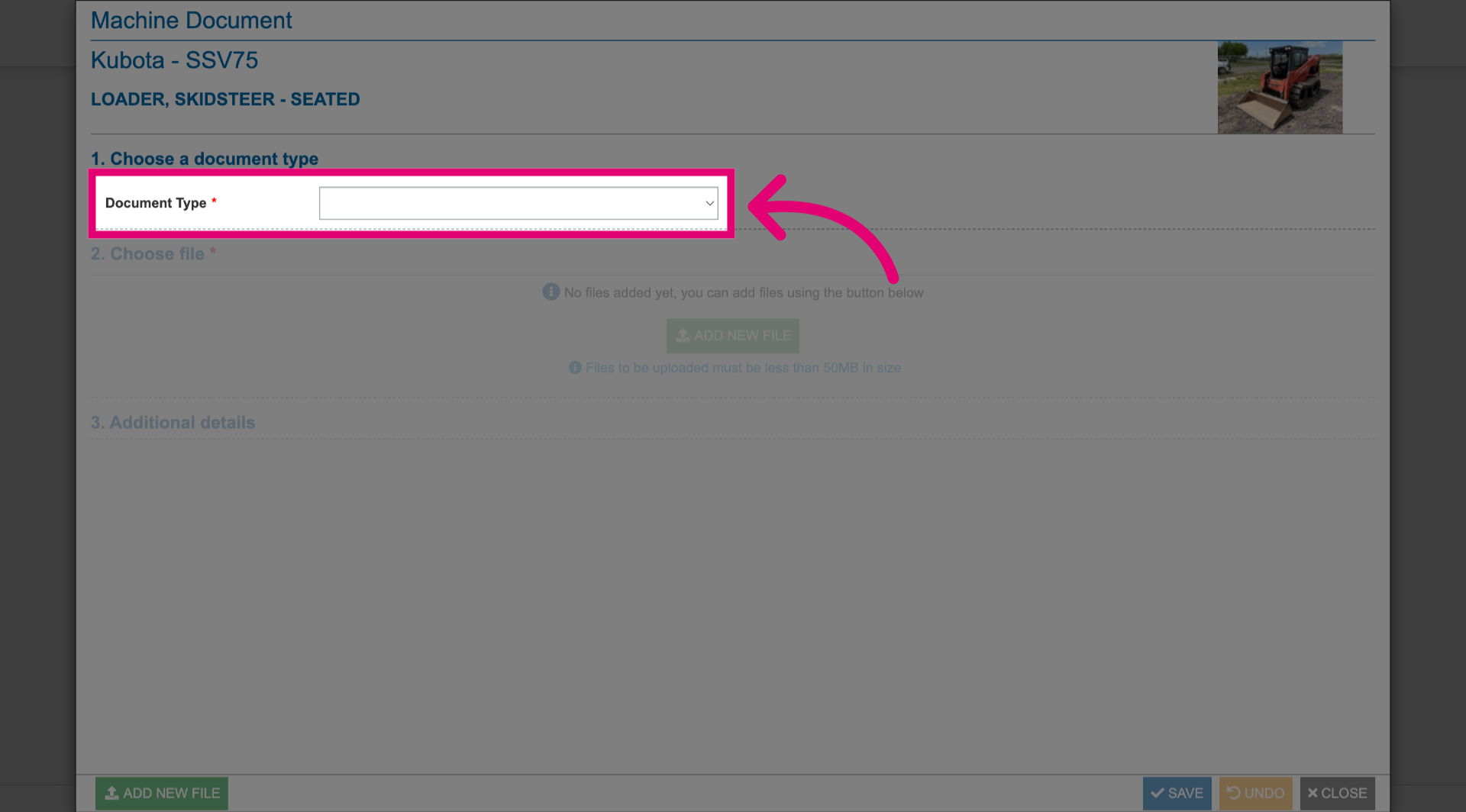
- Select the Document Type.
- Click Add New File.
- Select a file from your device.
You can skip this step if you're doing a precursory set up. You can add documents to a machine at a later time.
- Click Save.
- Click Close.
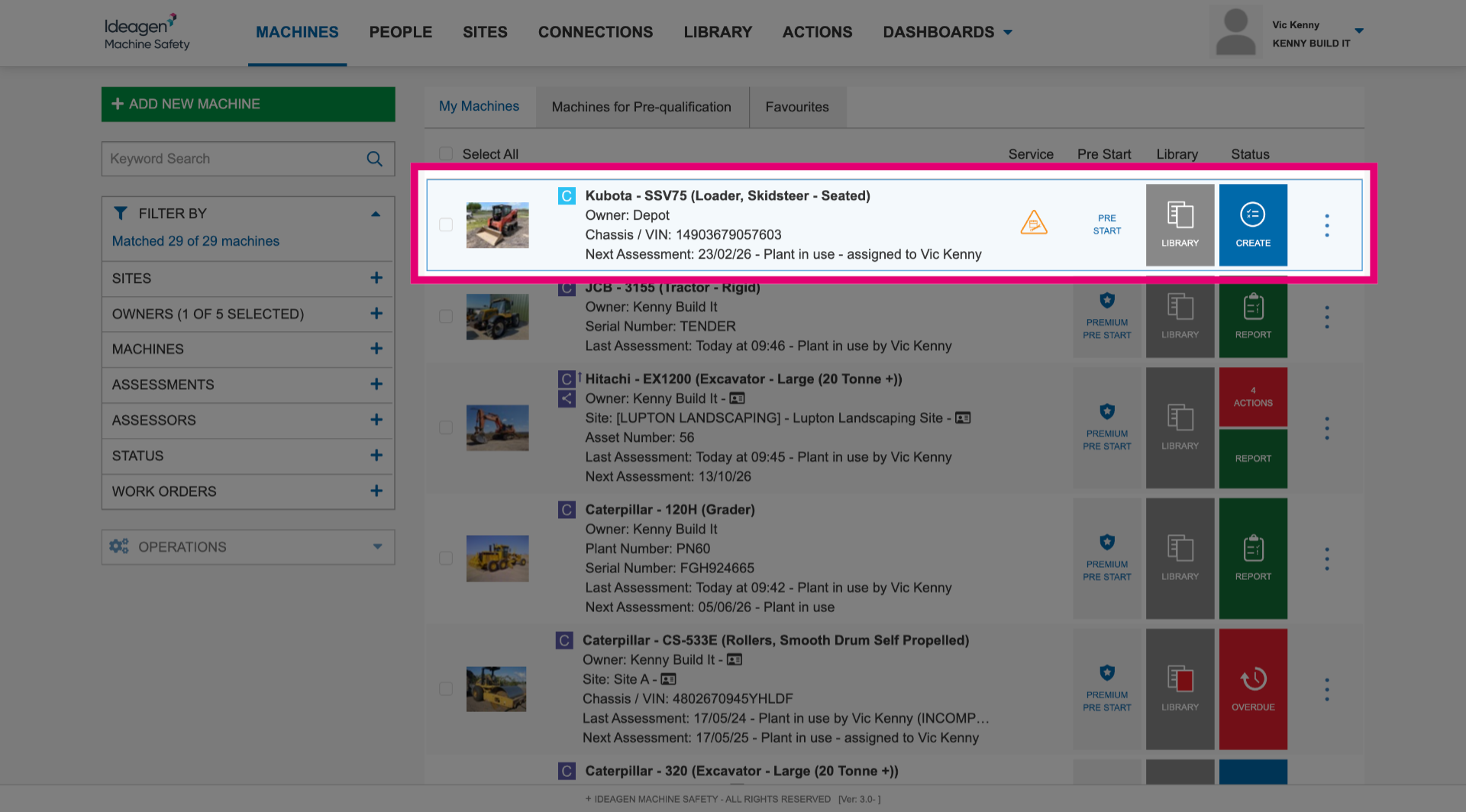
Once saved, the machine will be added to the system.