


New article
Recently updated
Supplying a machine as a subcontractor

Who is this article for?
Users working as subcontractors.
Connection request is required.
MySite simplifies the pre-qualification process for machine suppliers, helping you get your machines approved and on-site faster.
This article guides you through the machine supplying process through MySite. For more information, download the MySite Cheat Sheet.
1. Benefits
MySite provides several key advantages:
- Clear understanding of machinery compliance requirements
- Ability to perform industry-leading Ideagen Machine Safety Risk Assessments per machine and legislation
- Upload machine info and documents to a digital profile accessible anytime
- Track approval status for each machine's pre-qualification
- Access a live network of Hire Companies, Subcontractors, and Principal Contractors for easy machinery supply and pre-qualification
2. Accepting a connection
Connecting with other Ideagen Machine Safety users is the first step in supplying machines. Once connected, you can supply your machines to pre-qualification or straight to site.
To accept a connection request:
- Go to the Connections page.
- Look for the Orange wheel next to a connection request.
Alternatively, filter by Pending status. - Click the pending request.
- Click Accept button.
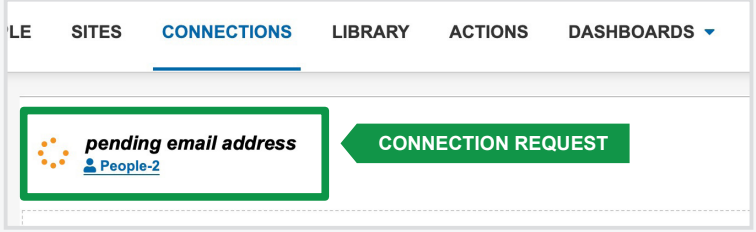
You are now connected and have access to your connection's sites.
3. Supplying a machine
There are three ways to supply machines, each serving a different purpose:
- Supplying to pre-qualification allows time to review and approve compliance documents before the machine arrives, speeding up onboarding and avoiding gate delays.
- Supplying to site means the machine is on-site and ready to work.
- Supplying directly to a connection is for dry-hire purposes.
There is no cost to you to supply a machine to pre-qualification or to site. However, if the Site Owner has requested an Ideagen Machine Safety risk assessment as part of their Site Requirements, those machines will be at Edge level.
Visit the pricing page to learn more.
We will focus on supplying to pre-qualification. The Site Owner will advise which site to supply your machine to.
To supply your machine to pre-qualification:
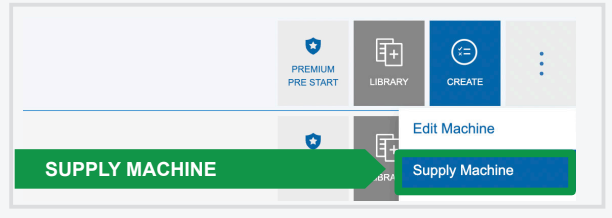
- Open the Ellipsis menu next to your machine.
- Select Supply Machine.
- Tick Supply to site and/or site pre-qual.
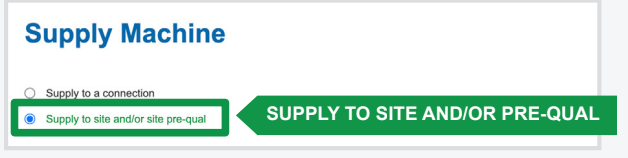
- Choose the owner from the Connections dropdown.
- Select the Site.
- Select the contact for the machine once supplied.
- Tick Supply to site pre-qual.
- Click Save.
When you select the site from the Owner's listing, the Site Requirements that you will need to supply are listed to the right.
4. Adding documents
After submitting your machine to a pre-qualification site, it will appear under the Machines for Pre-qual tab on the machine listing page. Hover over your machine library to check for any missing documents.
If involved in a major project, consult the Primary Contractor's Ideagen Machine Safety page for specific requirements.
Ensure you upload documents to the correct category in Ideagen Machine Safety; otherwise, the Site Owner won't be notified for review.
To add documents:
- Hover over your machine library.
- Click the Add button.
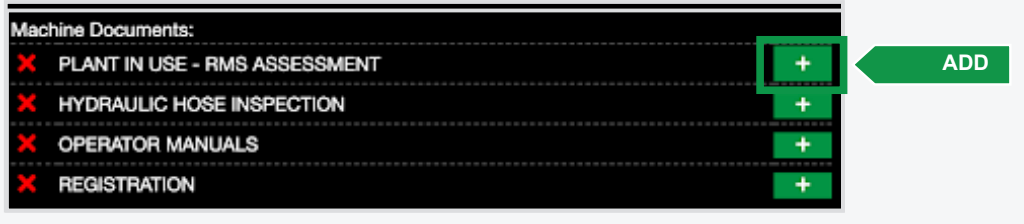
This will automatically assign each document to the correct category for review, with an icon that gives you an update on its approval status.
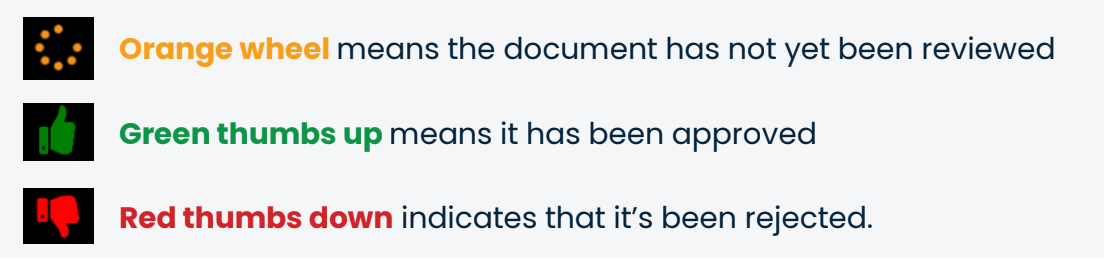
If your document has been rejected, you will be able to view the rejection reason in the library.
5. Checking machine status
To check your machine's approval status:
- Go to the Machines for Pre-qual tab.
- Filter by the site that you have supplied your machine to.
- Check status.
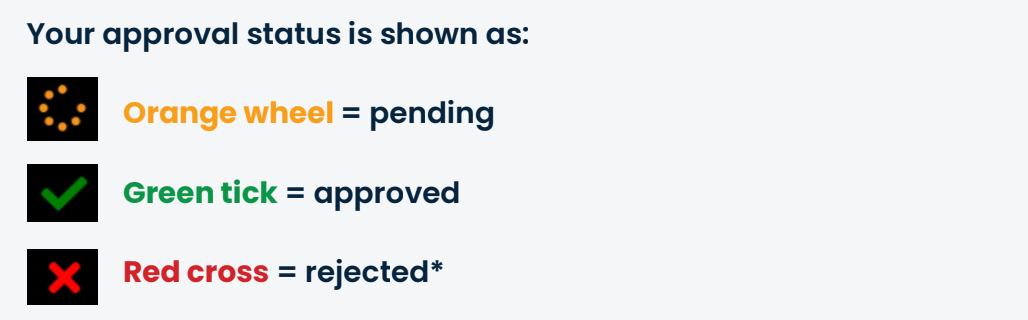
If your machine has been rejected, you will need to review the reason either via an email sent to you or by reviewing the documents supplied to see if any have been rejected.
9. Managing approved machines
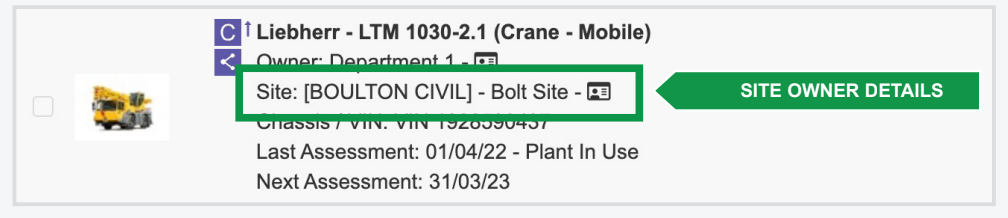
Once your machine is approved, the Site Owner will move the machine onto site. The site details along with the Site Owner's contact details will show under the machine summary details. Now you can start work.
Remember to conduct regular pre-starts to keep your machine in top working order.
10. Removing a machine
After project completion, you or the Site Owner can remove the machine from site.
To remove a machine from site:
- Double-click your machine.
- Go to the Machine Details tab.
- Remove the site from the machine details.
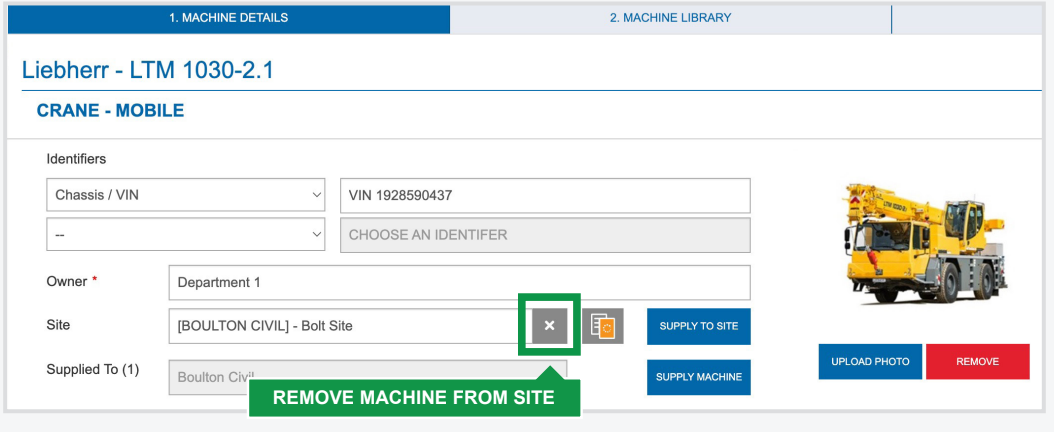
Your connection will remain, and you can supply machines for future projects at any time.
11. Managing hired machines
If your machine is hired, connect with your hire company, who will supply the machine. Contact support to assist your hire company if needed.
Machines supplied to your account can be on-supplied to other Ideagen Machine Safety connections, following the same process as supplying your own machine.