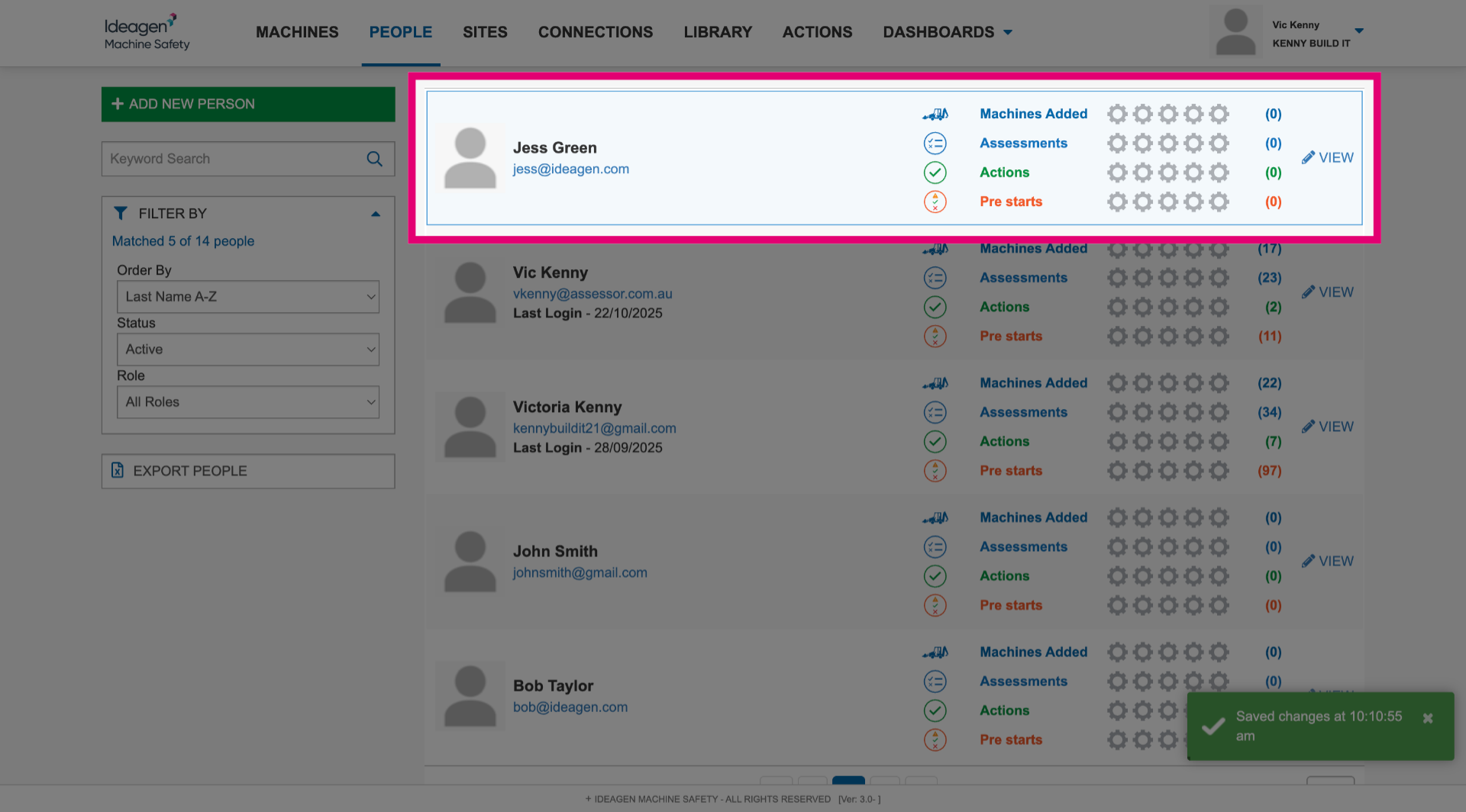
New article
Recently updated
Adding a user

Who is this article for?Administrators responsible for managing users.
Admin permissions are required.
This article walks you through the process of adding a new user to your system.
1. Adding users
To add a user:
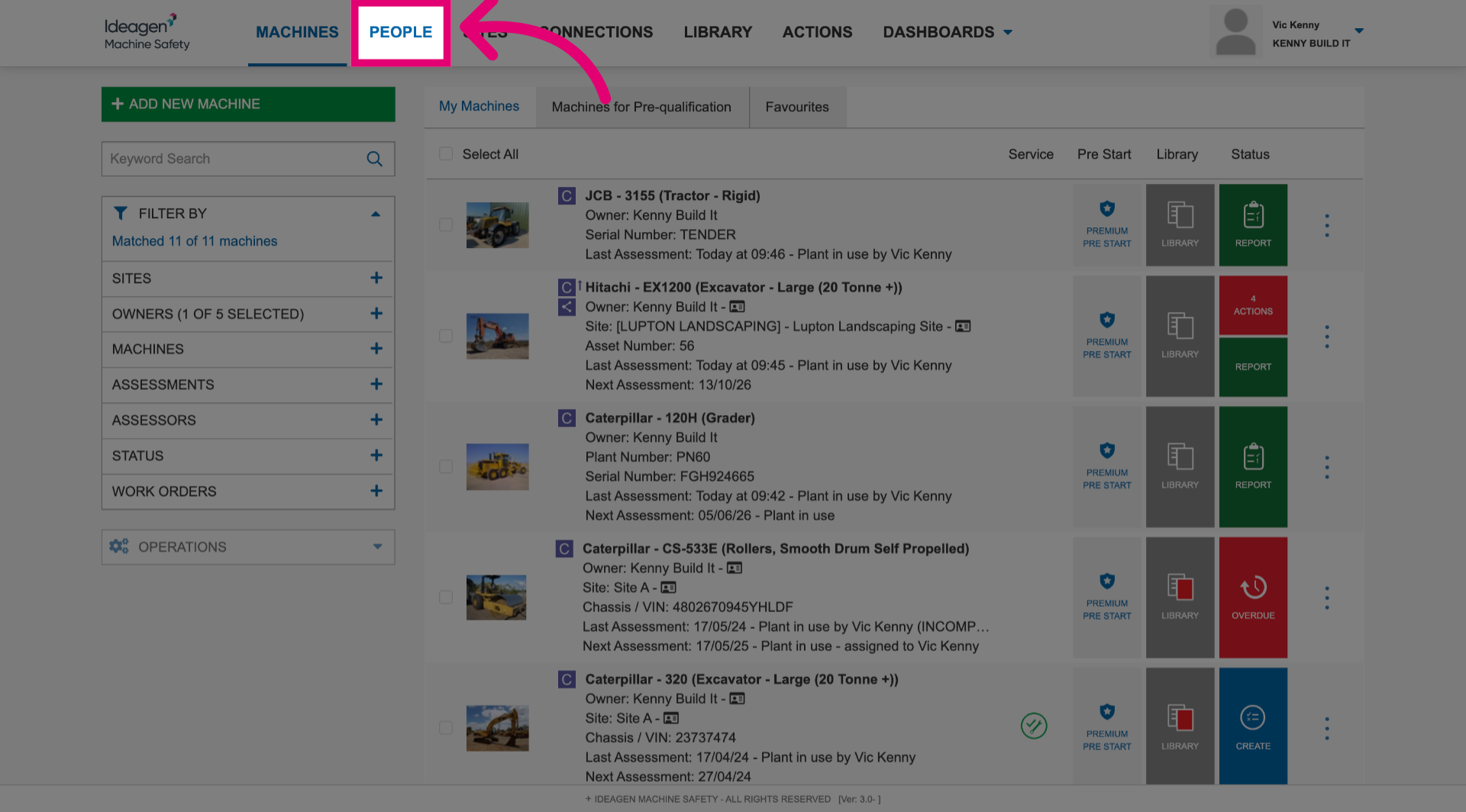
- Navigate to the People section.
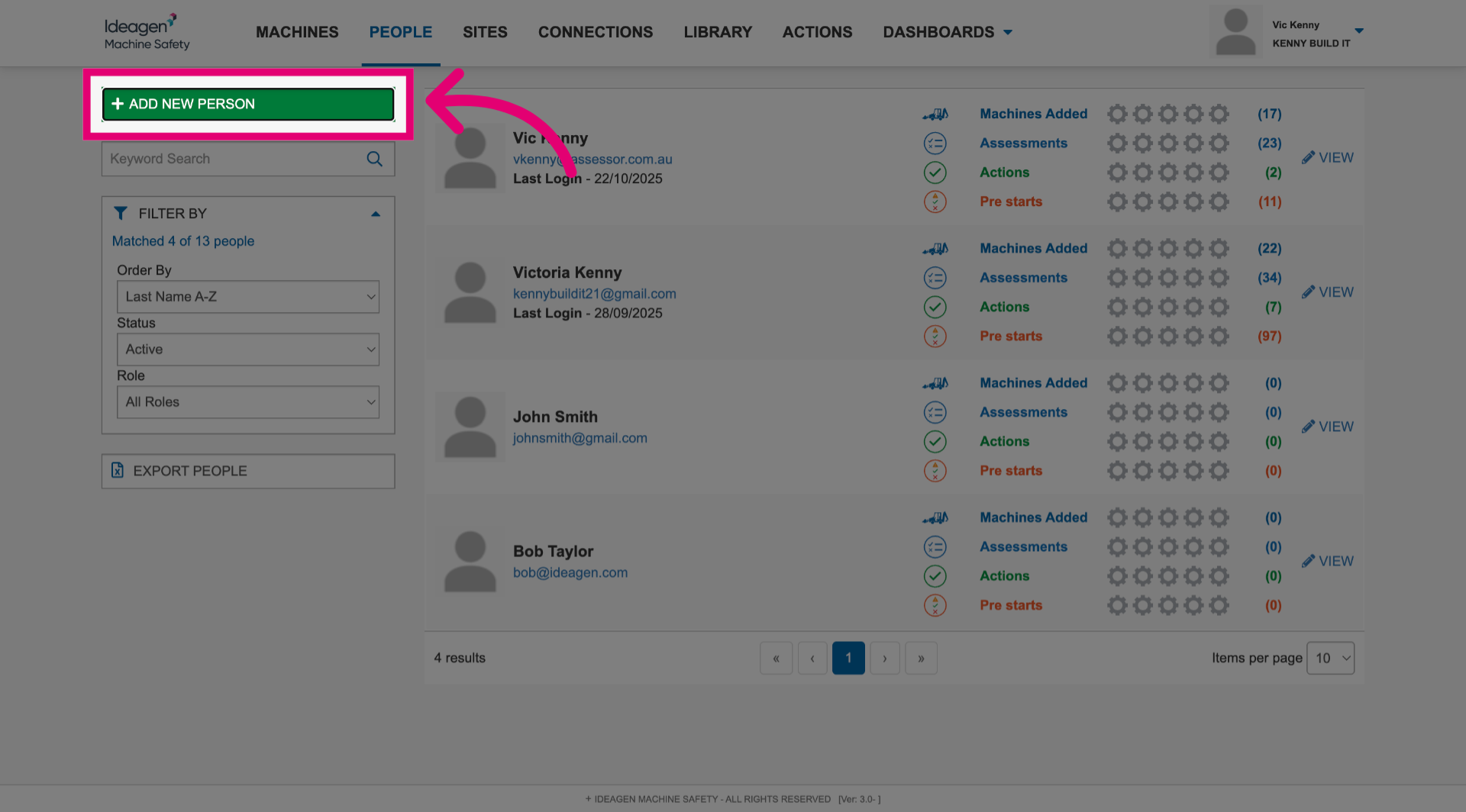
- Click the Add New Person button.
- Enter a First Name.
- Enter a Last Name.
- Enter a valid Email.
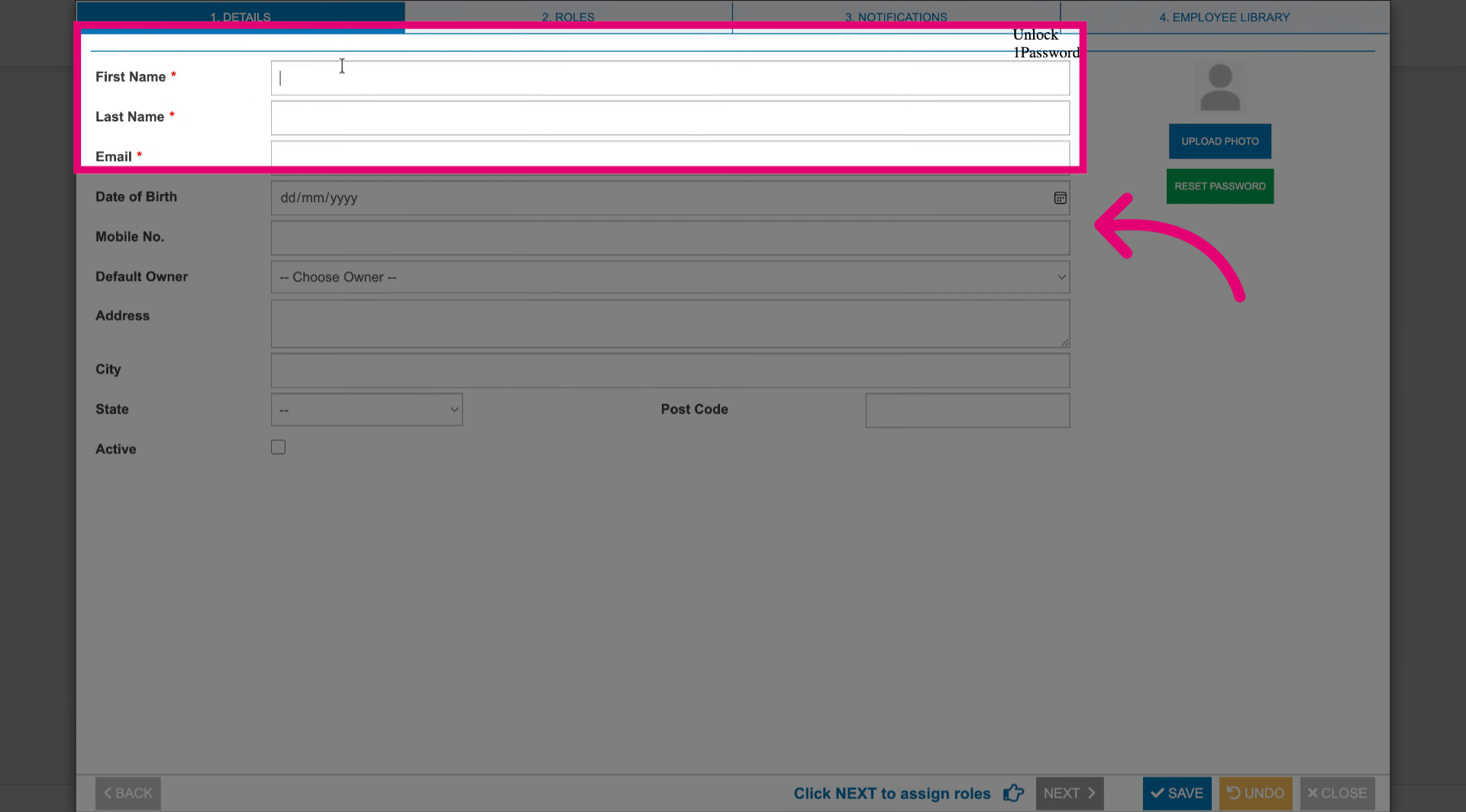
- Assign the user as a Default Owner if needed.
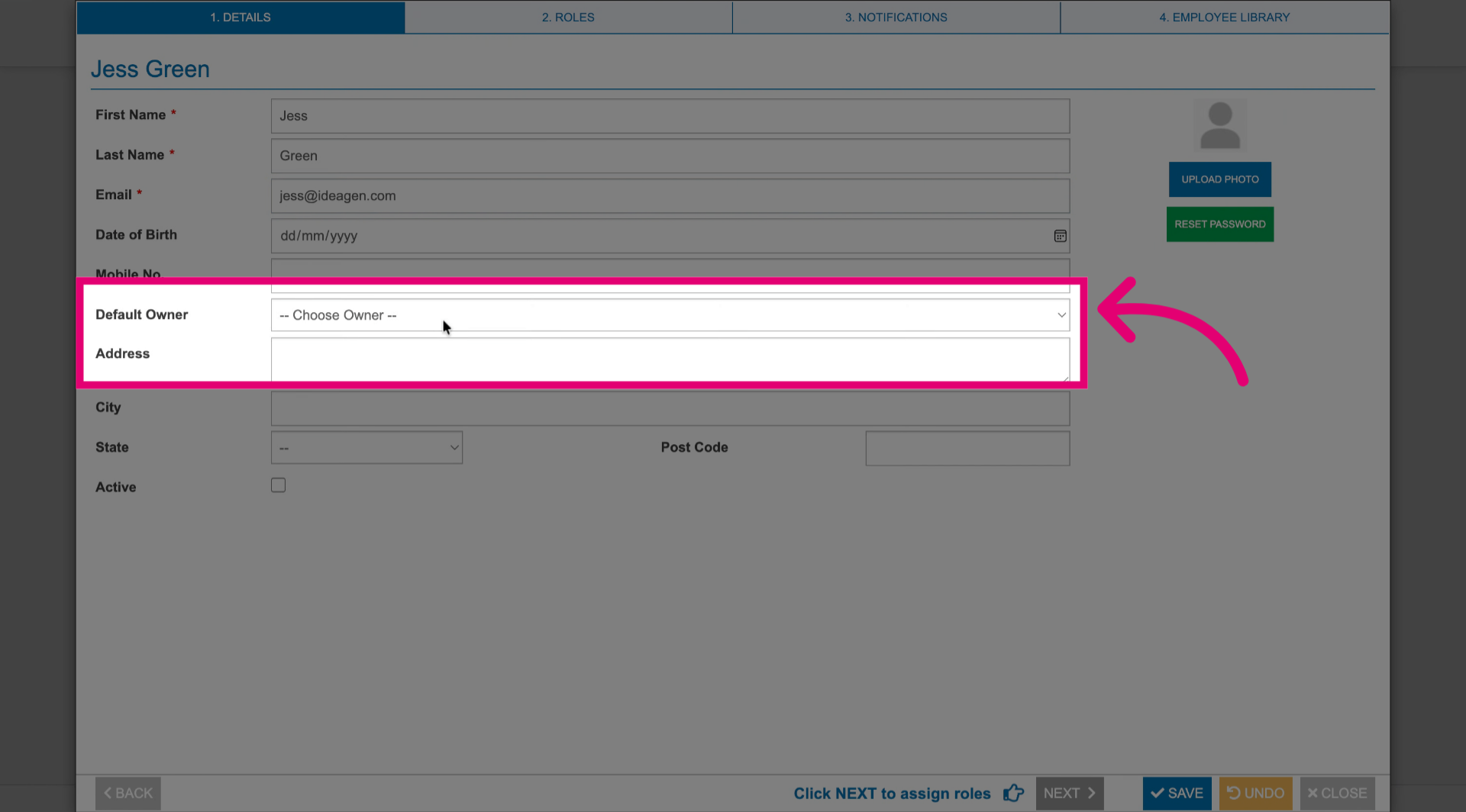
- Click Next.
- Assign roles.
You can choose between Admin, Operator, and Assessor.
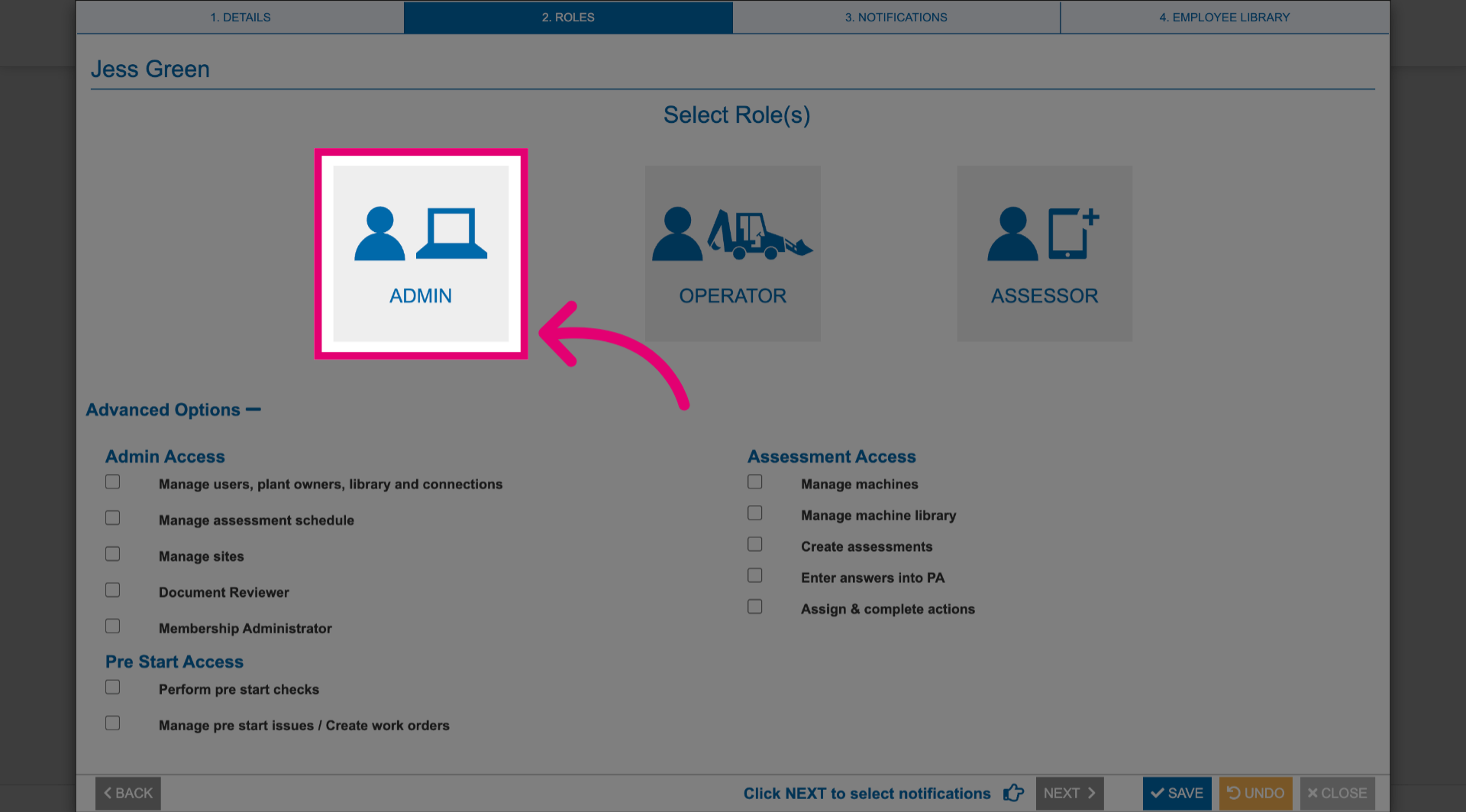
- Modify permissions by ticking or unticking applicable boxes.
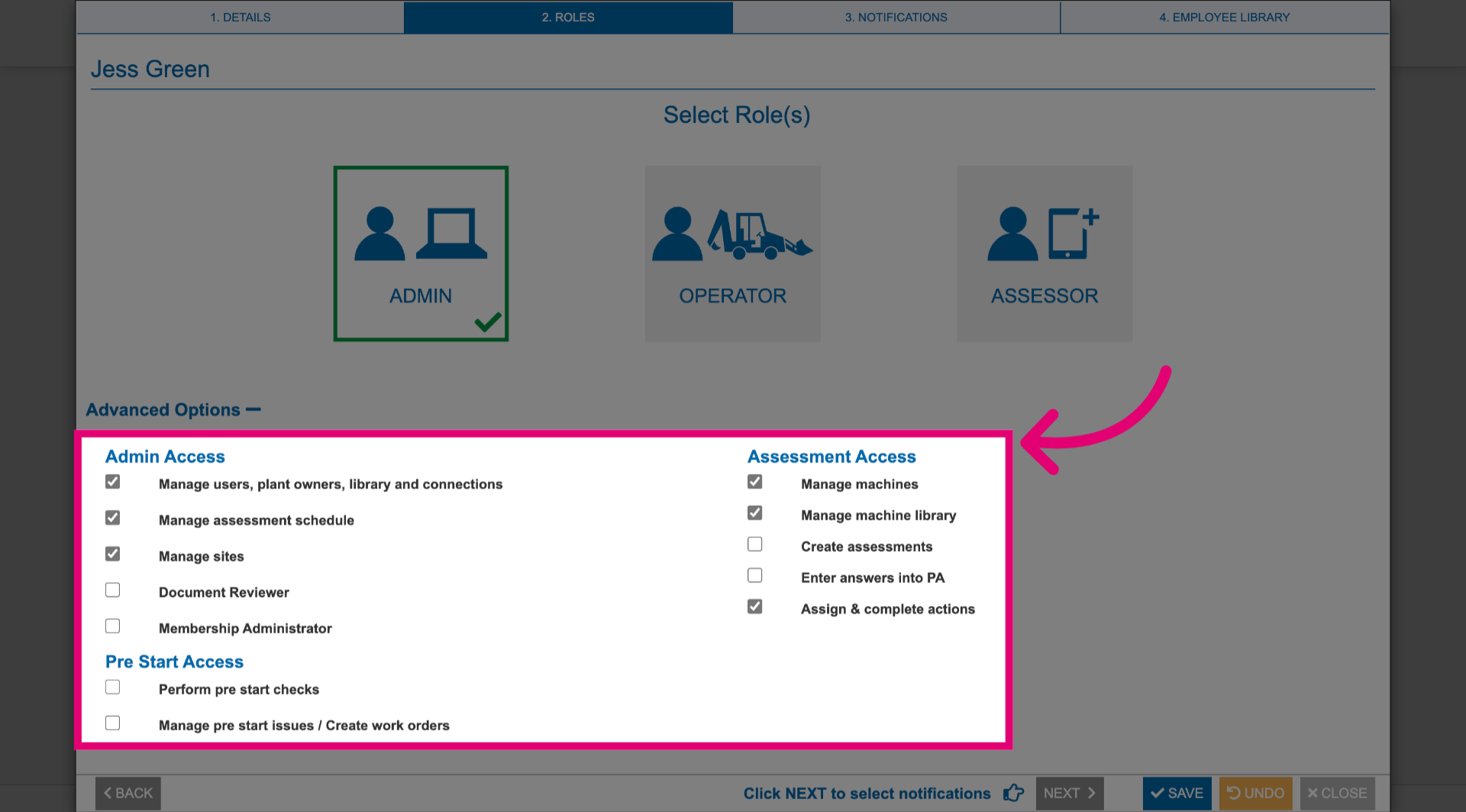
- Click Next.
- Tick Notifications and Reports the user will receive.
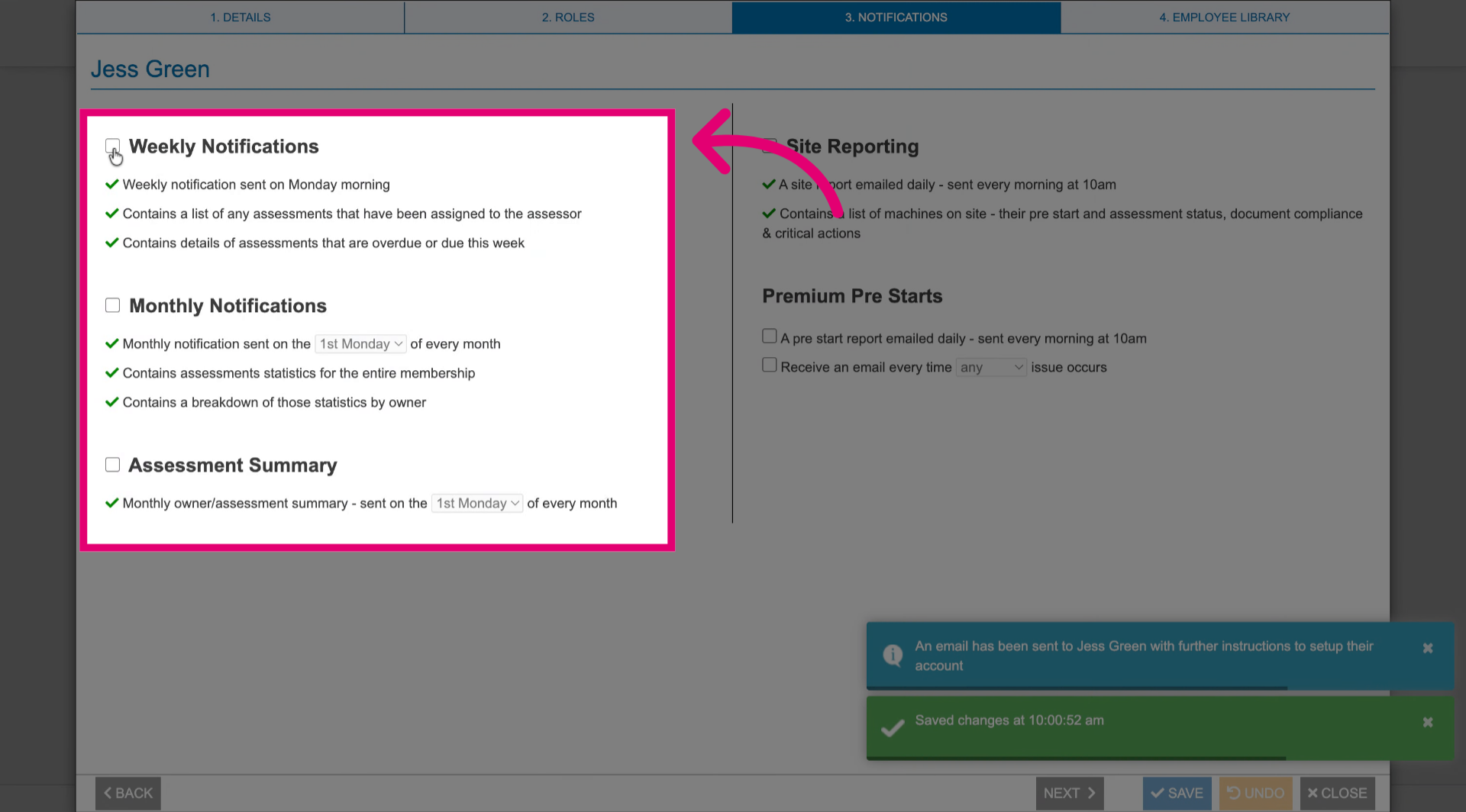
- Click Next.
- Click Add Document.
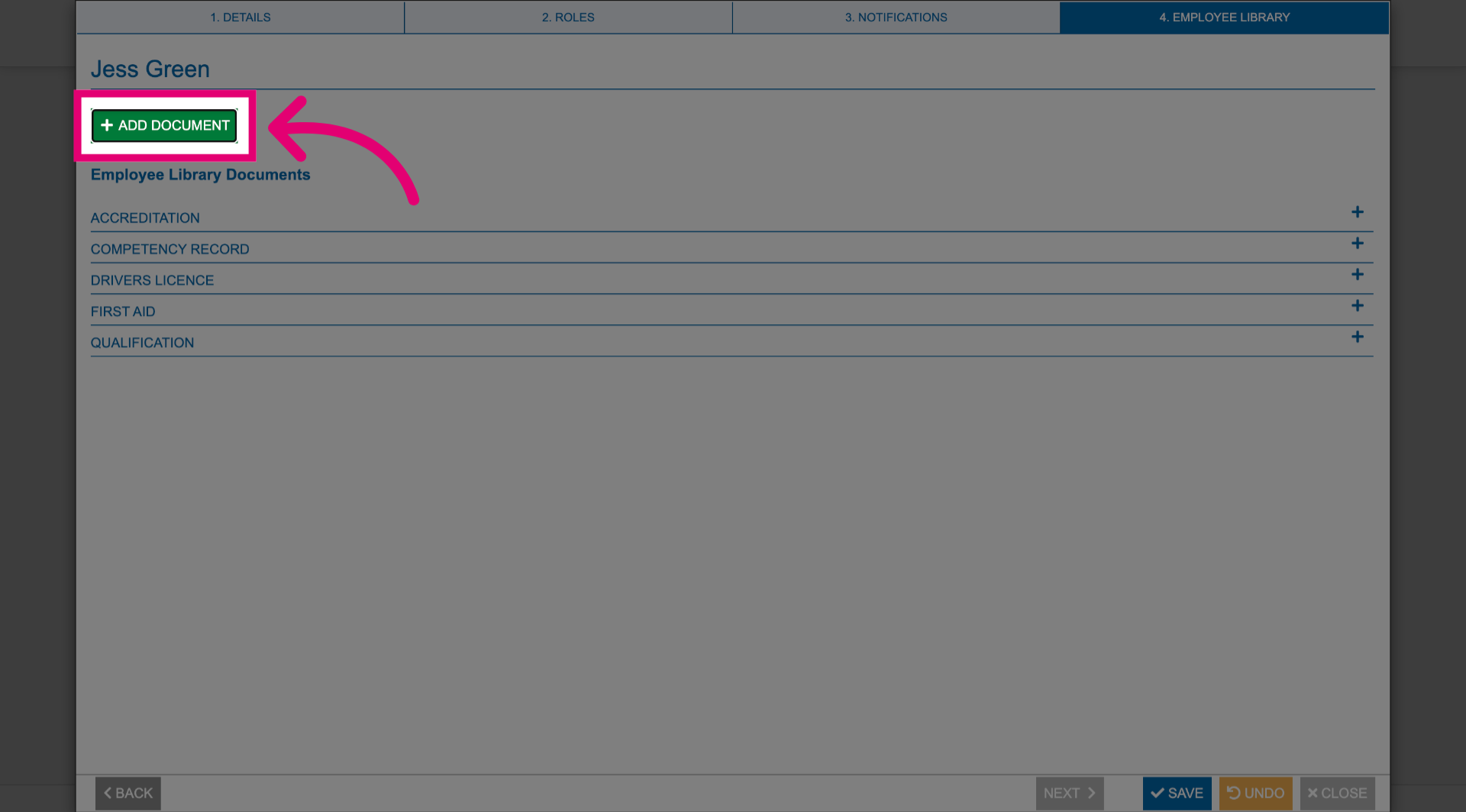
- Select document type.
- Record relevant information in Additional details.
- Click Save.
- Click Close.
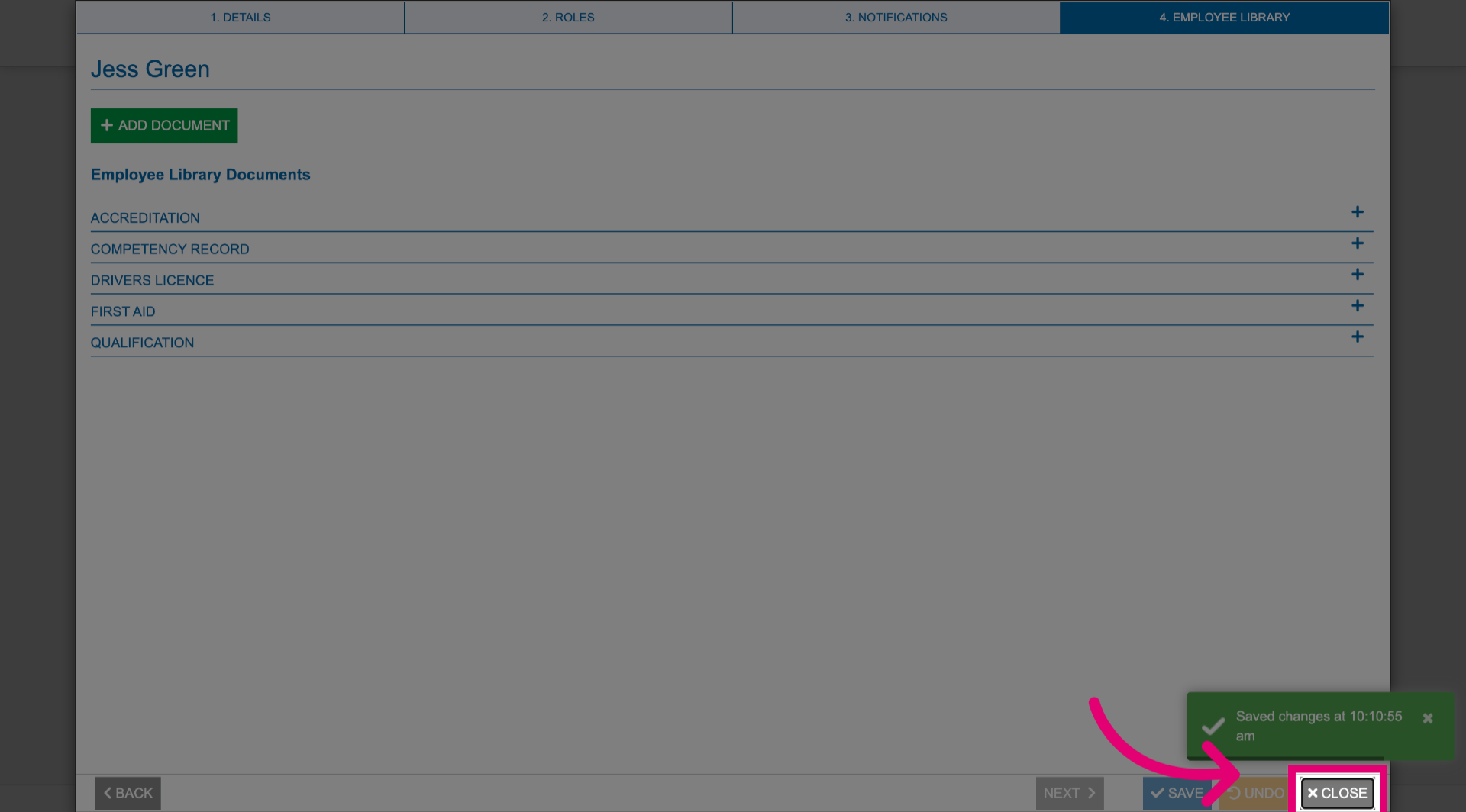
Once saved, the user will be added to the system. They will receive an email with instructions on how to create their password.
To open the user's profile, double-click their user card or click the View button on the right.